
New Report: Employee License/Certifications
We have a new report available that breaks down Employee License/Certifications by their type, so you can easily see who has what license and their due dates.
Chronological Dates on Asset Life Cycle
We’ve added a helpful check to the Purchase Date, Received Date, and In Service Date fields on the Asset Life Cycle tab to make sure these dates always make sense in chronological order. Keeping these dates accurate and in the correct sequence is important for calculating your Depreciation correctly and for tracking Warranty coverage windows. Since both depreciation schedules and warranty terms are based on when an asset was purchased, received, or put into service, out-of-order dates can lead to inaccurate reporting or missed warranty coverage.
Specifically:
- If a Purchase Date is entered, the Received Date (if filled in) must be on or after the Purchase Date.
- If a Purchase Date is entered, the In Service Date (if filled in) must be on or after the Purchase Date.
- If a Received Date is entered, the In Service Date (if filled in) must be on or after the Received Date.
You can still leave any or all of these fields blank; you’ll only see a message if the dates entered are out of order.
License/Certifications Scan Field
When completing a License/Certification log, a scan field has been added to the completion log so any certificates or paperwork can be added when updating the completion date.
Work Order Updates
The History tab on the Work Order view has been renamed to Asset Maintenance History, to more clearly reflect the information found on that tab.
User Manager – Resolved Issue
We fixed an issue where only the first 100 employees would show in the Data-link list. This has been updated so all employees now show.
Registration Number Addition
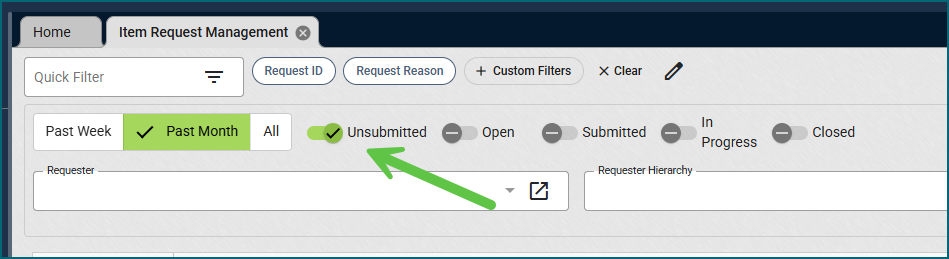
On Asset Scheduling –>Registration, we added a field called “Registration #” to allow users to add in a Registration or tracking number if needed. This was also added to the Registration completion log as well.
Item Request – Additional Improvements
Item Request Templates now support a Required option. When enabled, requesters cannot remove that item from the template on the Item Request view. This setting defaults to unchecked, so existing templates will continue to work as they do today.
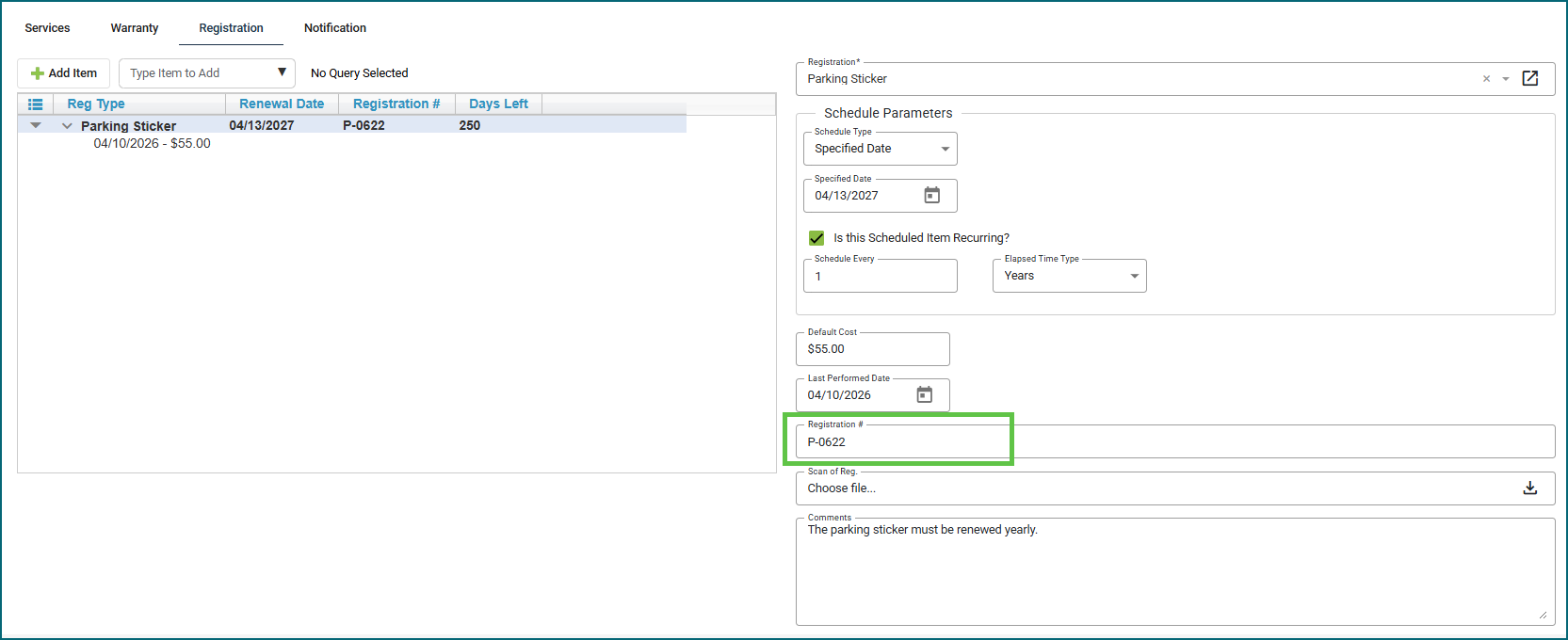
For the resume item request workflow (introduced last month), unsubmitted requests will now display a badge on the History tab, alerting requesters that their request was not formally submitted.
We’ve also made several improvements to the Item Request Management view:
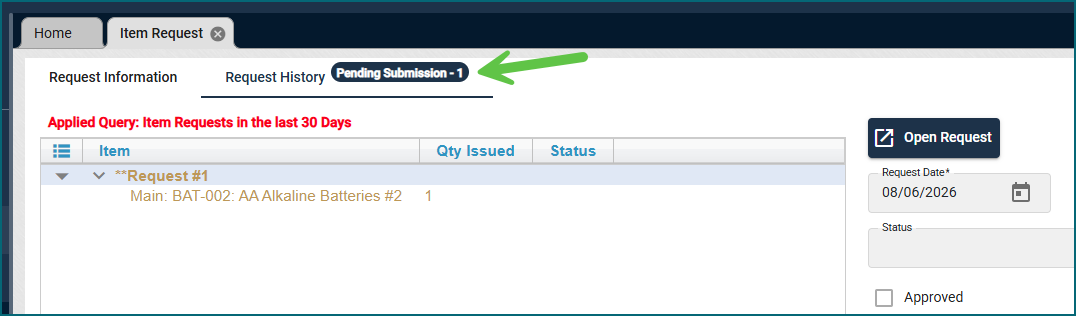
Inventory quantity is now shown directly on the request card, so you can see stock levels at a glance before approving.
Cards for items with 0 in stock are highlighted in grey as a visual indicator. This doesn’t limit any functionality; you can still approve the request, open a PO, or update the status on the Item Request view as usual.
Updating or swapping out requested items is now easier and more streamlined.
Requests with a comment now appear with an orange line in the list, making them easier to spot.
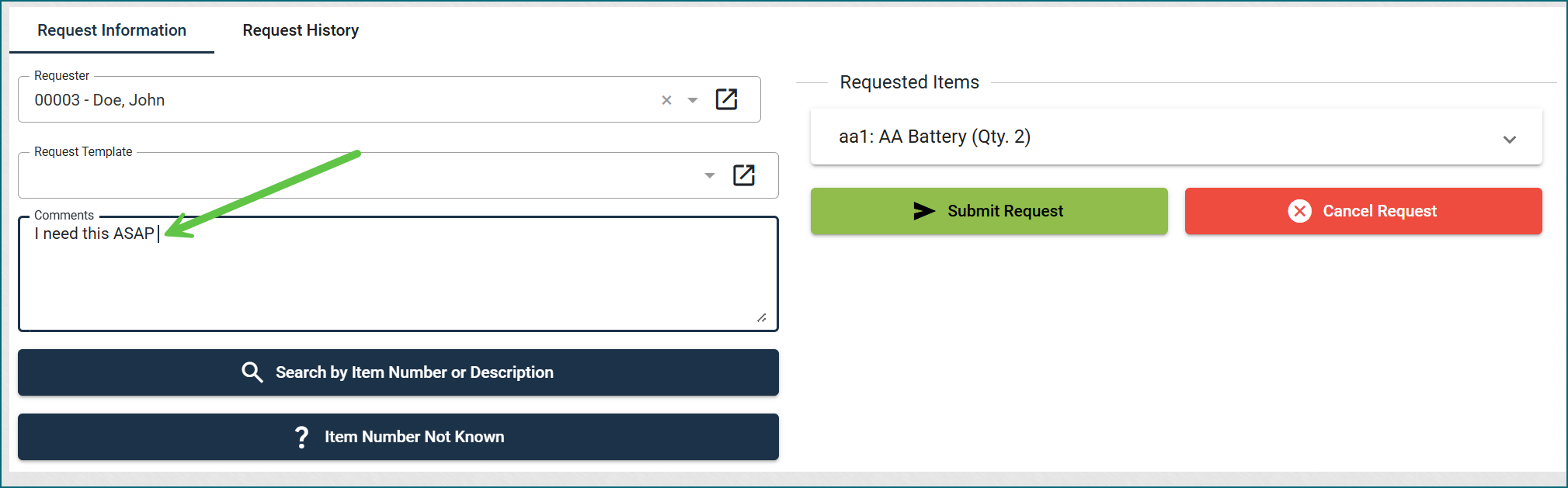
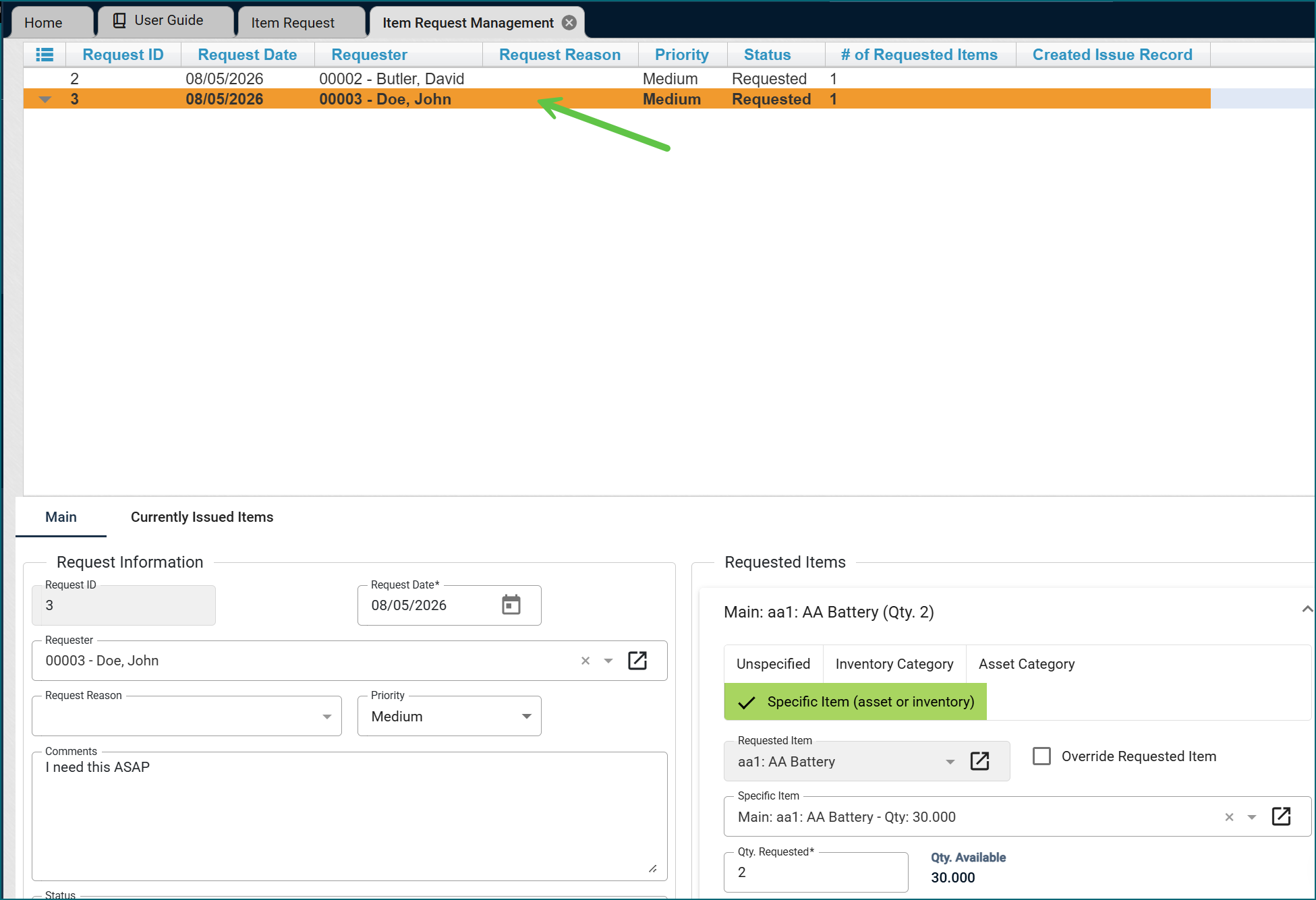
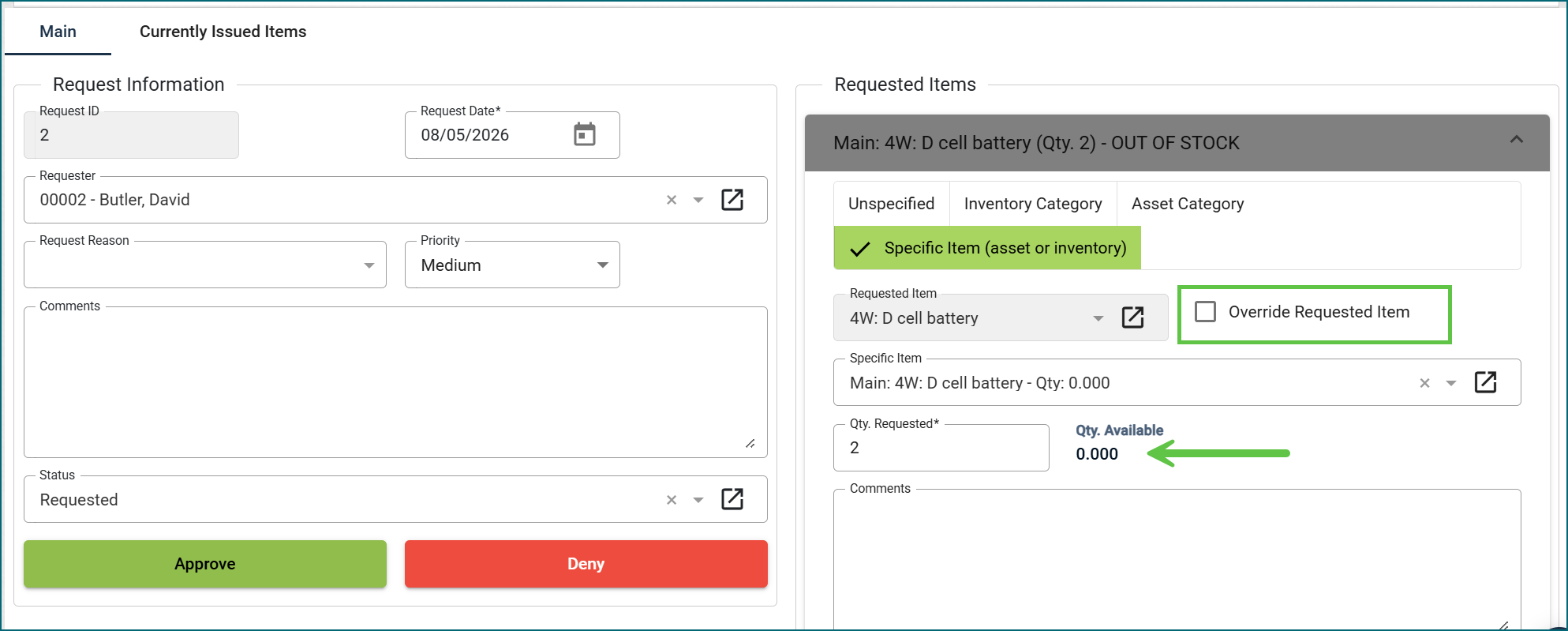
Lastly, a new toggle filter lets you view unsubmitted requests (available if the “Save” feature is enabled in Organization Settings).