

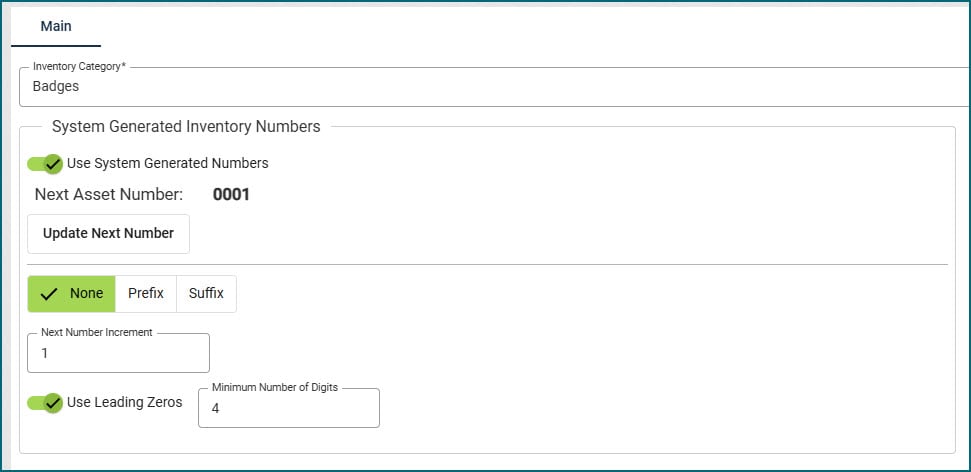
Auto-Incrementing Inventory Numbers
You can now set Inventory to use auto-incrementing numeric inventory numbers for easier and more consistent tracking if you do not have specific numbers you want to use. This works the same as the auto-incrementing asset numbers feature. For information on how to use this feature, check the User Guide under the Inventory topic.
Admin – Idle and Absolute Timeouts
We added controls on the Admin page to manage idle and absolute session timeouts. These settings are available separately for regular users and kiosk users.
- Idle timeout: If you are idle (hands off the keyboard) for longer than the idle time set, you will see a login prompt and need to sign back in.
- Absolute timeout: When the absolute time is reached, you will see a login prompt even if you are actively working or typing. This check happens every few seconds, so the prompt may not appear the exact second the limit is reached.
Being idle briefly and then returning to work (without seeing a login prompt) does not extend your absolute time.
Logging back in resets both the idle and absolute timers.
Example:
If the idle time is set to 20 minutes and the absolute time is set to 12 hours:
- You step away for 10 minutes and return: everything continues to work.
- You step away for 25 minutes and return: you see a login prompt.
- You work continuously for 12 hours without going idle: you see a login prompt when the 12-hour absolute limit is reached.
- You work for 6 hours, log back in after a lunch break, then work another 7 hours: you do not see a login prompt because the timers restarted when you logged back in.
We did set general times already, so if you would like to change these you can reference the instructions on how to change them by visiting the Admin View topic in the User Guide under the General Navigation and Set Up section.
General Users:
- Idle Time: 20 minutes
- Absolute Time: 720 minutes (12 hours)
Kiosk Mode:
- Idle Time: 60 minutes
- Absolute Time: 4320 minutes (72 hours)
Report Updates
Invoice Report – the formatting has been fixed on this report so the text is no longer overlapping.
To-Do List View
The To-Do list has had some slight visual changes with Refresh button placement. There have been no changes to functionality.
Employee Inactivation Requirements Updated
The employee inactivation workflow has been updated. Employees can no longer be inactivated if they have active issuances. All issued items must be returned (either consumed or returned to stock) before inactivation can be completed.
PM Reset
We fixed an issue with Inspection Due Dates not resetting on PMs.
Parts Status Log
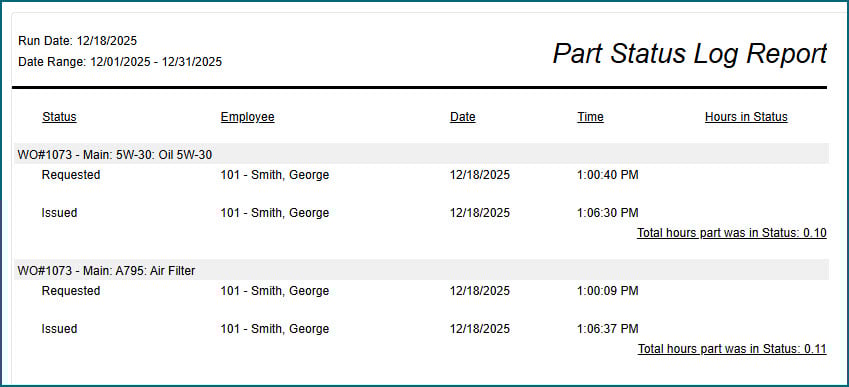
A Parts Status Log has been created to better support questions around part timelines; this tracks each status a part moves through (e.g., ordered, received, installed) along with timestamps.
There is a Part Status Log view to locate these timestamps, and a Part Status Log report that can be run to see how long parts were in specific statuses on work orders.
Technician View
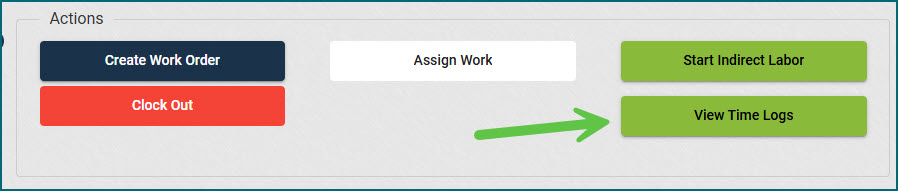
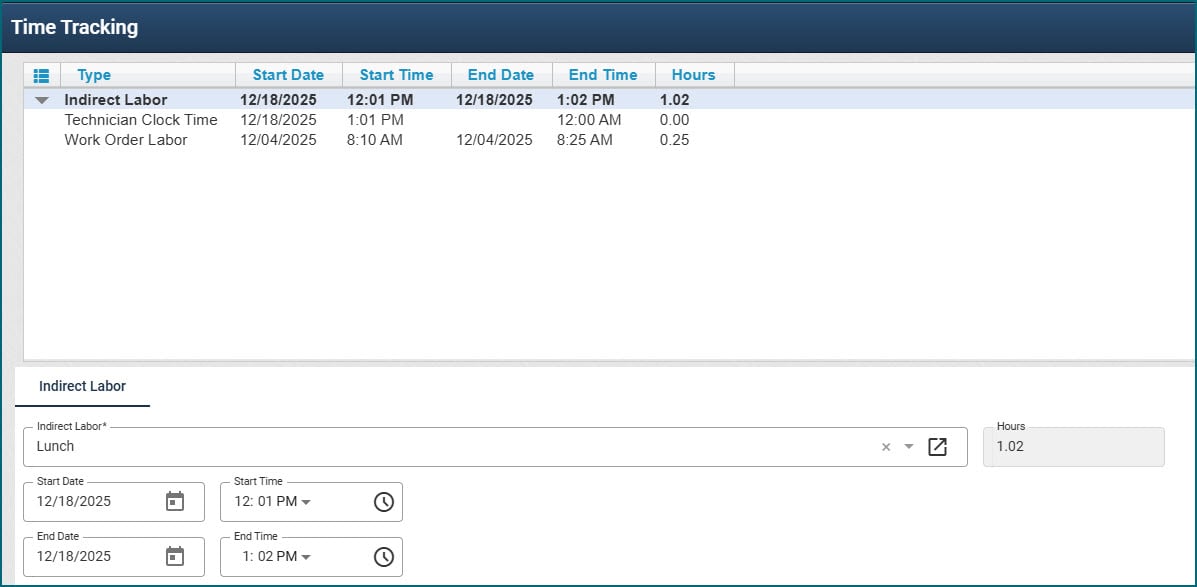
There is now a button available to Technicians on the Tech View that allows them to see their time logs for the day to ensure accuracy. It will show them both direct and indirect labor hours.
Report Updates
The Asset Condition report has been renamed Asset Replacement Condition.