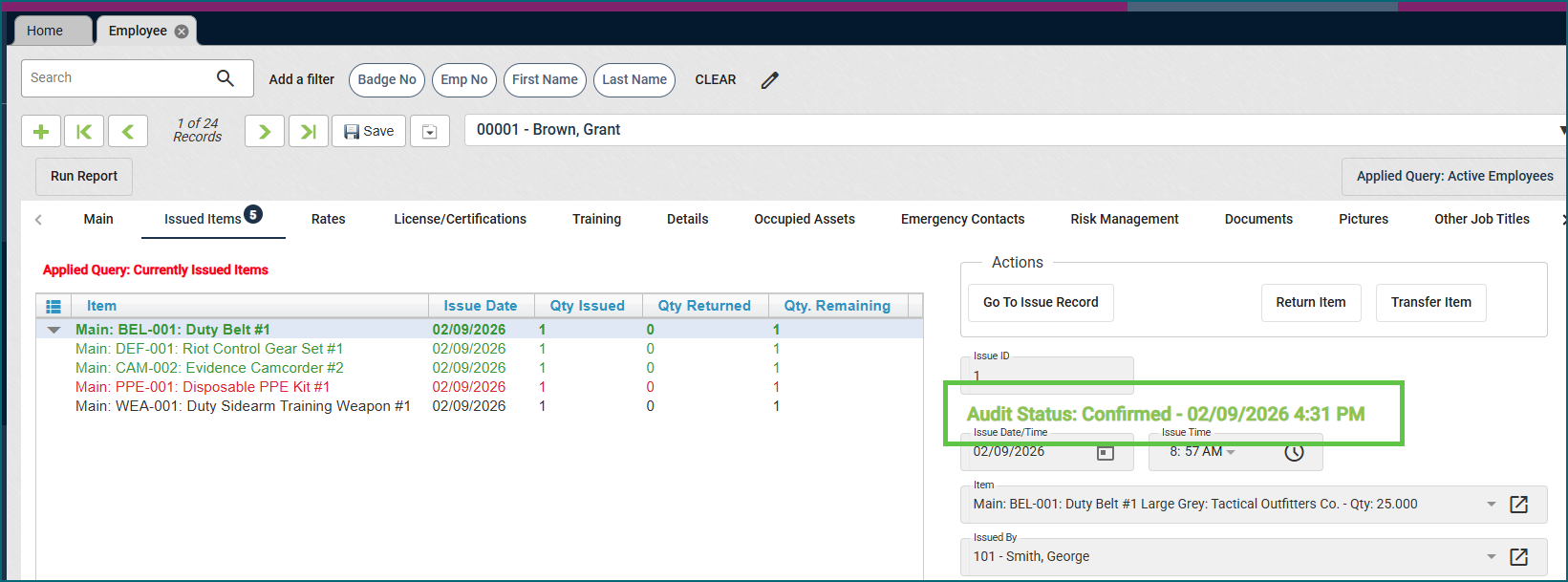

Collapsible Side Navigation for a Larger Workspace
You can now collapse the side navigation to create more space in your application workspace!
- Click the arrows at the top of the navigation panel to collapse it into an icon-only view.
- Hover over the icons to quickly access the views you need.
- Click the arrows again to expand the full navigation menu.
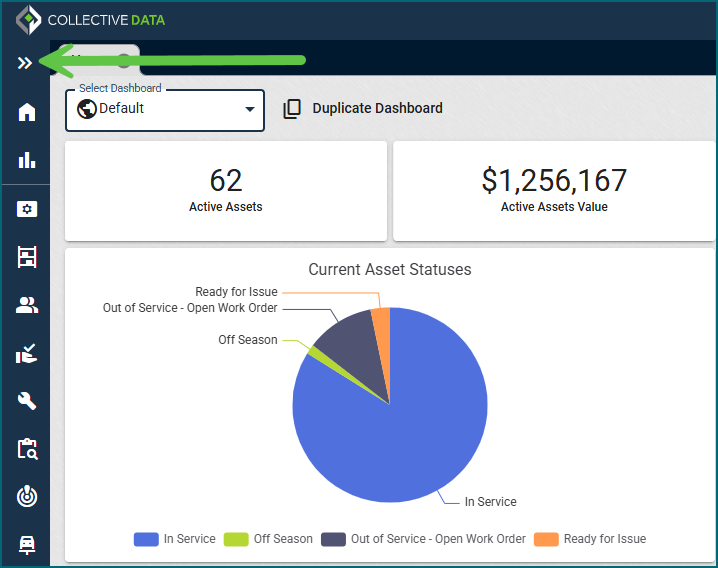
Work Order – Documents & Pictures
The Documents and Pictures sections on the Work Order view have been moved to tabs at the top of the screen instead of as buttons in the middle. This makes it easier to see when files have been added to a Work Order.
Uploading is now simpler too! You can drag and drop multiple documents or photos at once, and uploaded items are displayed in a gallery-style view.
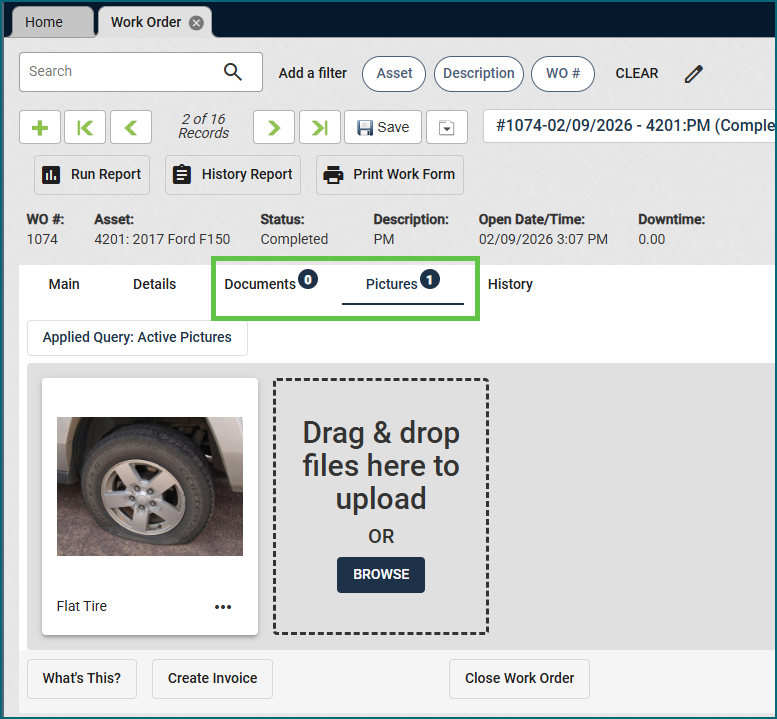
Meter Updates – Asset View
Based on client feedback, the Allow updates from asset view setting on the Organization Settings → Meter Settings tab is now unchecked by default. This change reduces the risk of inaccurate meter updates and unintended impacts to PM scheduling. If the setting is manually enabled, a reminder will appear noting that meter updates made from the asset view are not tied to or triggered by any application events.
Asset Disposal Form
The Asset Disposal Form is now enabled by default on Asset Categories, making it easier to access when retiring or disposing of an asset. You can find the form on the Asset View → Life Cycle tab. This change does not make the form mandatory; it simply makes it more visible when you need it.
Import Updates
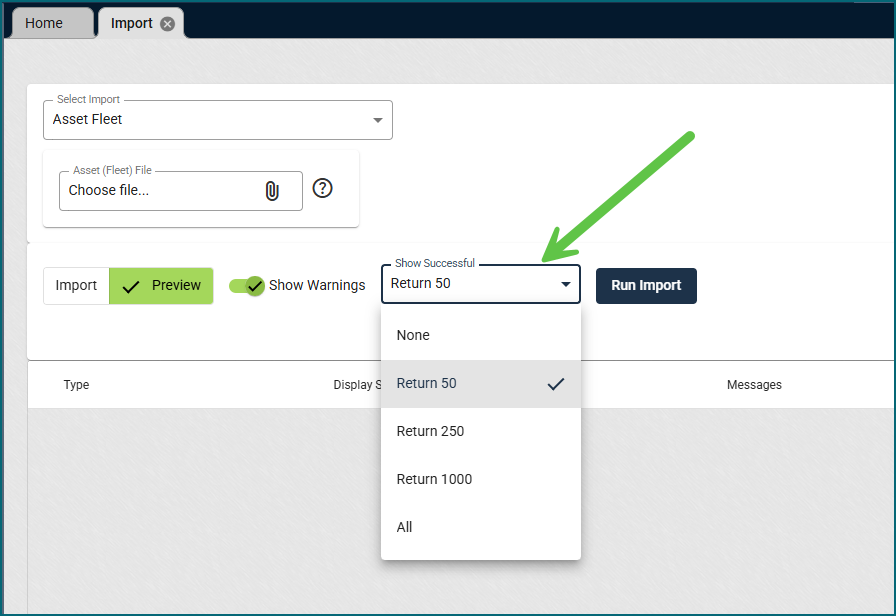
We’ve enhanced the Import view to let you preview a selected number of records before loading the full dataset. This allows you to quickly validate a small subset of data (especially helpful when importing large volumes of similar records) so you can confirm everything looks correct without waiting for all records to load on screen.
Maintenance Requests + Work Orders
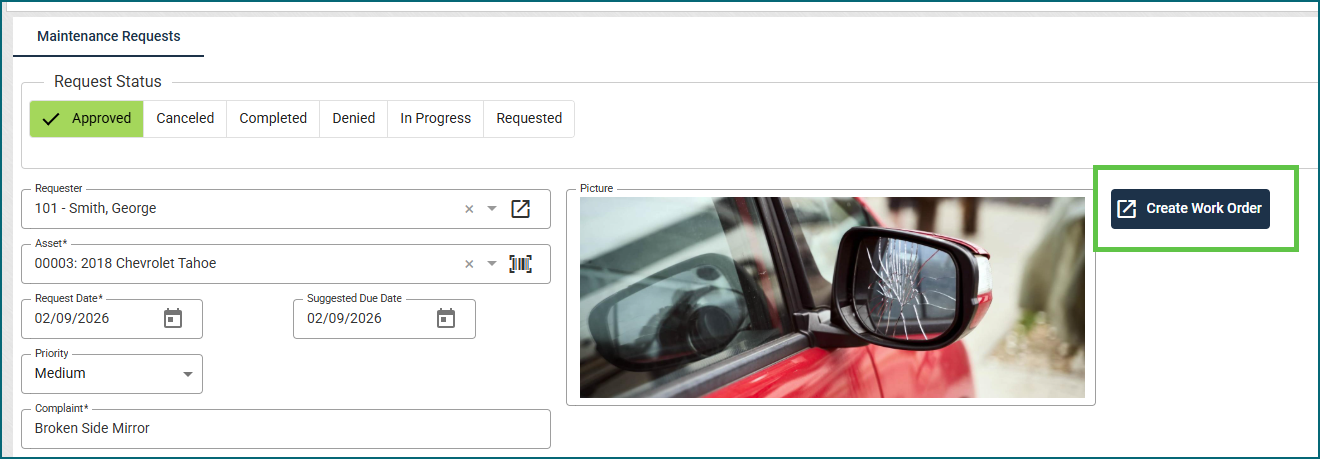
Images submitted with Maintenance Requests are now available on the Work Order view. If an image was included, an image button will appear on the Work Order Details → Maintenance Request tab, allowing you to view the submitted image.
In the example below, the image is on the Maintenance Request Management view when creating the Work Order.
On the Work Order that was created, the Image is able to be seen on the Maint. Req. tab on the Details. 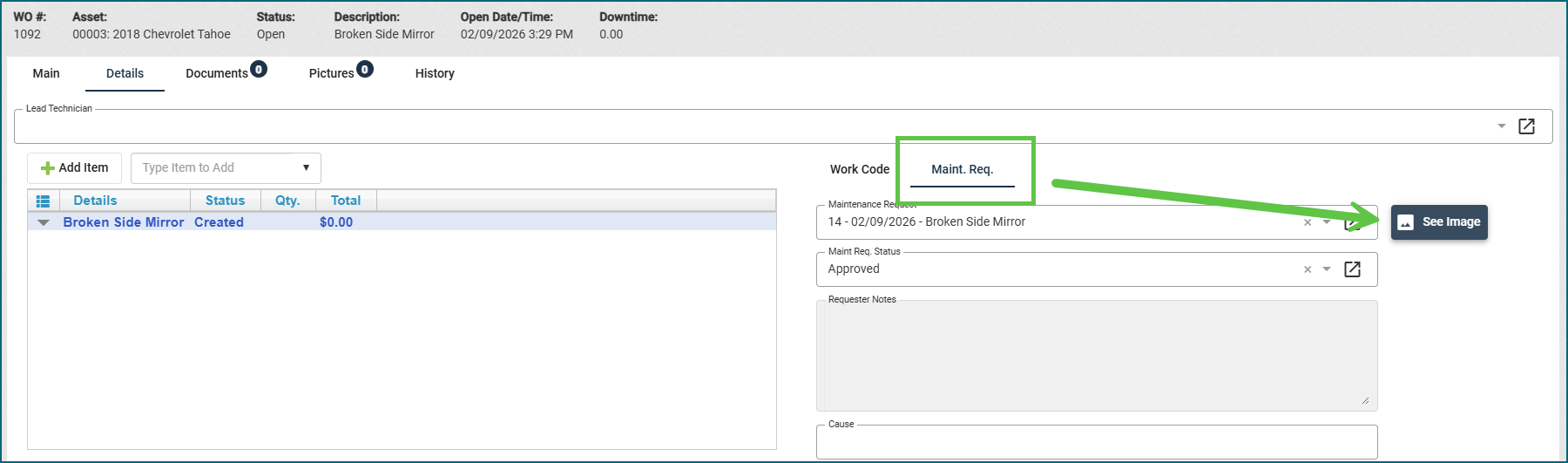
Work Order Statuses + Inventory
We resolved an issue with the Available/Allocated and Need to Order statuses that were not displaying the correct inventory levels on the Work Order view. This has been corrected.
“Other Charge” Calculations
When using the “Other Charge” option on Work Orders for Upcharge percentage, it was discovered that the percentage was not applying to Misc Parts and Misc Labor on the WO. This has been corrected so it now calculates for those fields in addition to parts and labor.
Report Updates
- Accidents – Drivers at Fault: We updated this report to be easier to read and show you at a glance information about the driver and costs associated with accidents caused.
- Asset Repair History: Updated the meter columns so only the meters 3 and 4 display if data is available for those assets. If the asset only has 1 or 2 meters, the other columns don’t display.
- Asset Downtime: Updated the information in the report to better explain where downtime hours were generated
- Asset Driver History: Updated the look and feel of the report to be easier to read and give better information about asset assignments.
Item Request Updates
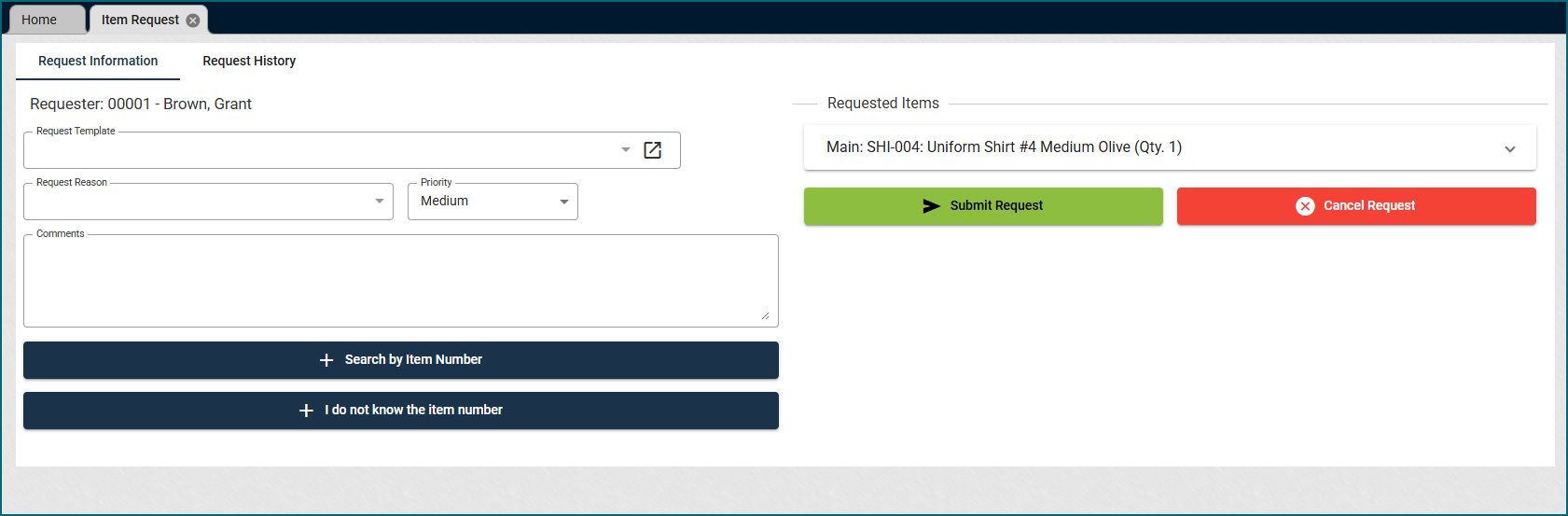
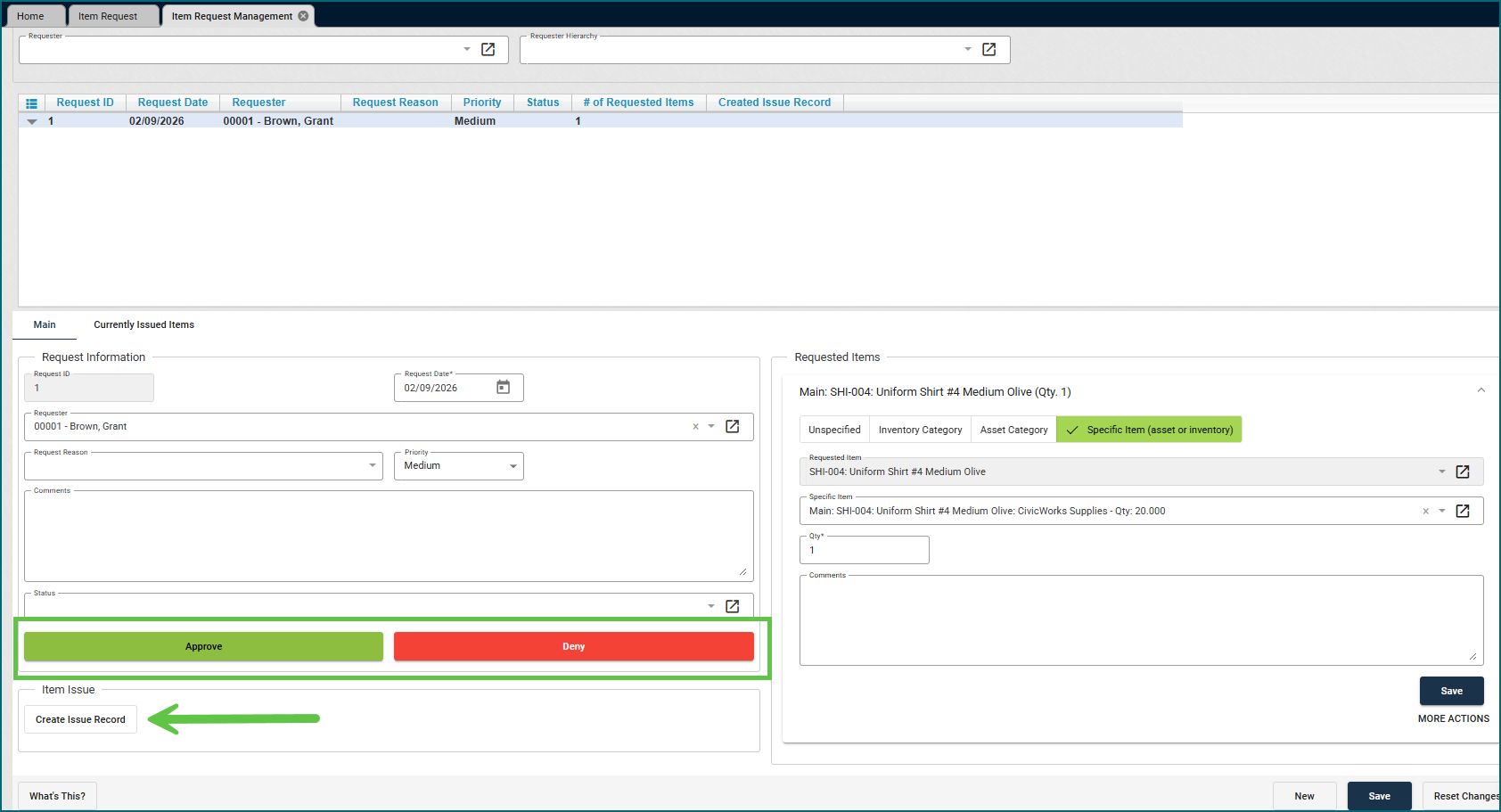
Introducing the new Item Request workflow, designed to make requesting and issuing items faster and easier for everyone. Limited Users can quickly create item requests using templates, search by item number or name, or simply describe what they need when item numbers aren’t known. Multiple items can be added to a single request, with support for sizing, color, and other required details. Data-linked users can also track request history and status.
Quartermasters now get a centralized management view to take care of requests end to end. Easily filter by status and timeframe, review item details at a glance, approve or deny requests, and issue items directly from approved requests. Requests that need attention are clearly highlighted, and it’s easy to select warehouses, resolve unspecified items, or override item styles – keeping fulfillment moving without delays.
Review the User Guide → Item Request for a detailed workflow on how to use these new views.
Asset Audit Updates
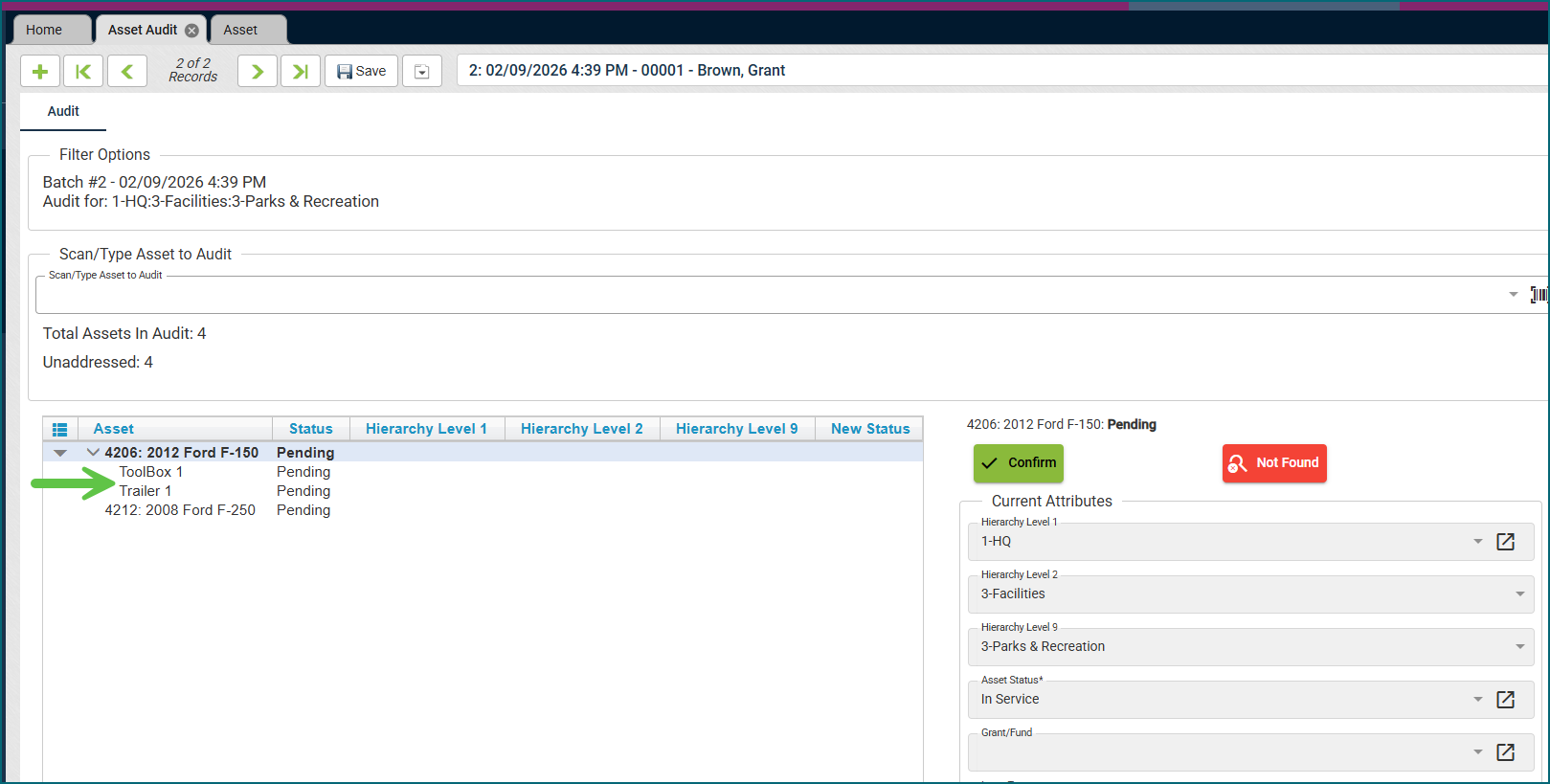
The Asset Audit view now includes asset attachments. The audit process works the same as before, but any attachments linked to an asset will now appear indented directly beneath it in the list, allowing you to quickly confirm or deny whether each attachment is present.
Self-Auditing Feature
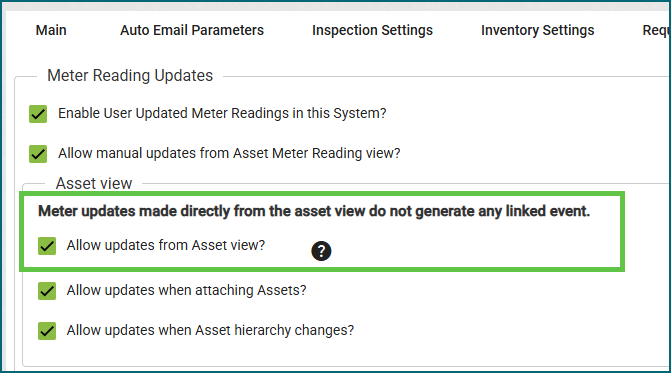
Admins now have improved visibility into employee confirmations. On the Employee View → Issued Items tab, each item is color-coded; green for confirmed, red for denied, and black for pending – making status easy to scan at a glance. Each item also displays the date and time the audit was completed. This information remains fully available in reports.