

New Side Navigation
We’ve made some updates to the navigation to improve your experience and make it easier to find what you need. As part of this change, you will notice that your menu items have now moved into a side navigation bar on the left. While the core functionality you rely on remains the same, we want to make sure this transition feels seamless — so we’ve put together a brief walkthrough video to guide you through what’s new before the update goes live. We recommend taking a few minutes to review it ahead of time so you feel confident navigating the changes on day one.
Q: Where did all my shortcuts go?
A: You’ll now find them in the Pinned Items section. Everything you had saved at the top shortcut bar is still available and easily accessible, just in a new spot.
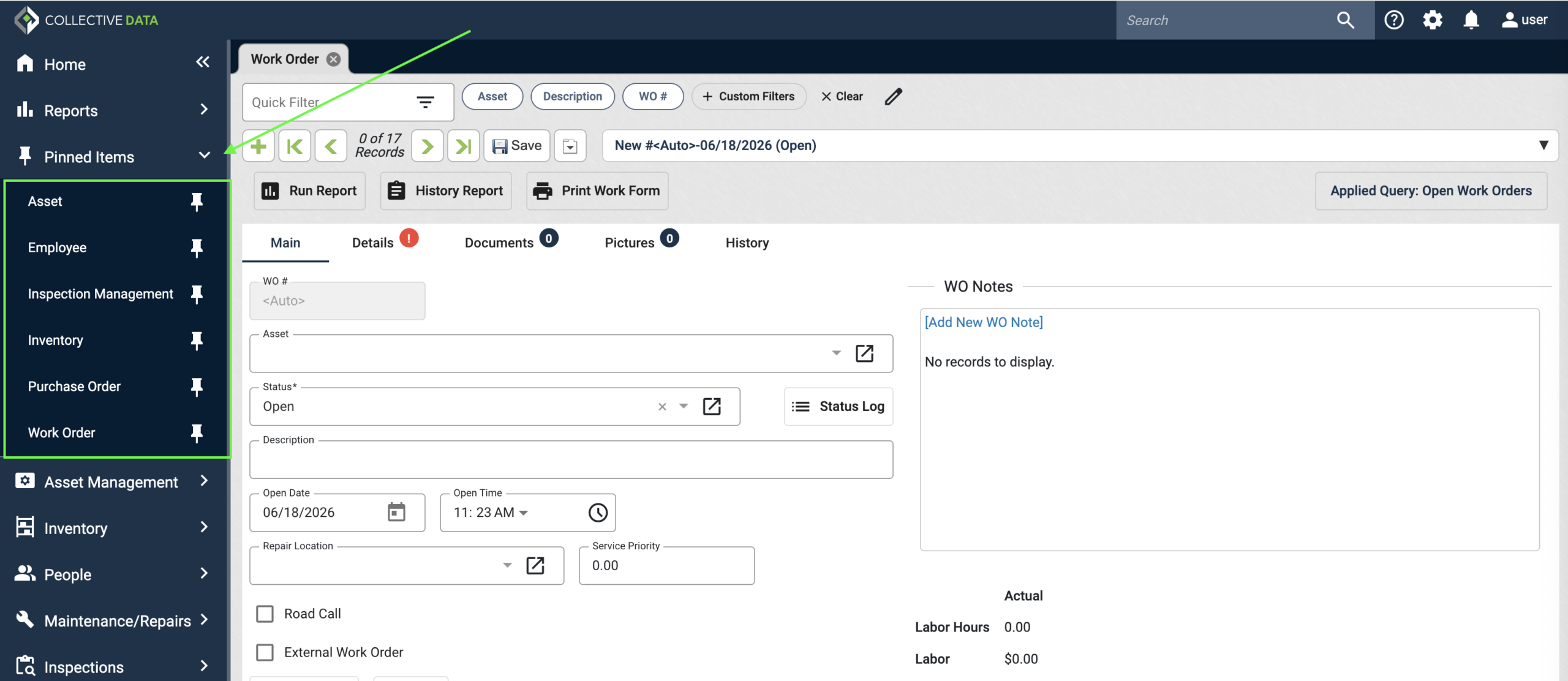
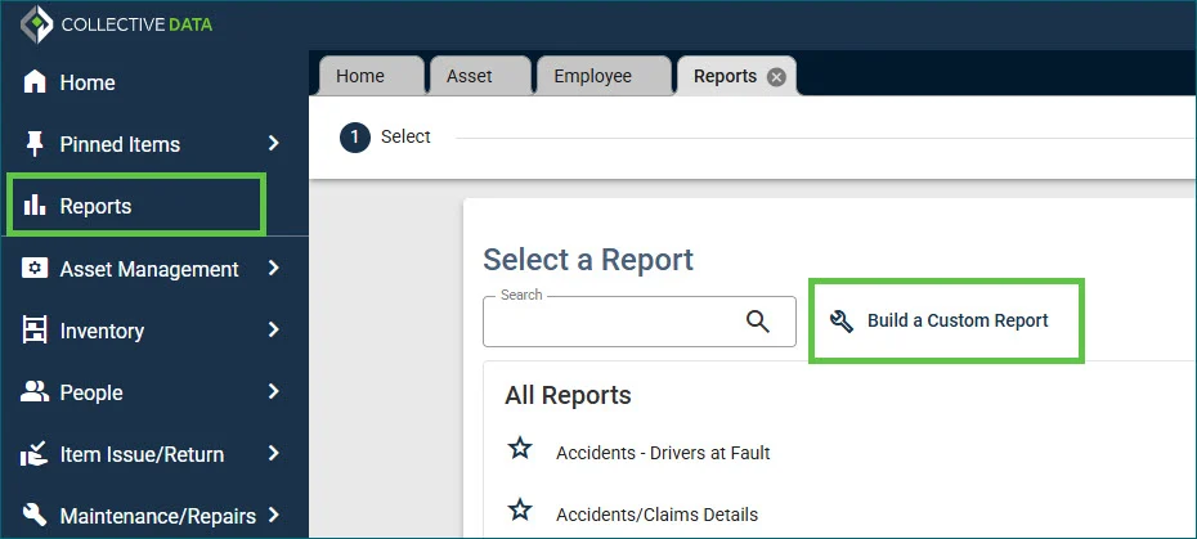
Q: Where did the Reports icon go?
A: Reports now have their own place in the side navigation. Here you’ll see:
- Your favorited reports
- Your recent reports
- Report Builder, now accessible on the “Build a Custom Report” link that is on the Report Selector view.
Q: How do I know if I have unsaved work on a tab?
A: The system will let you know just as it did before:
- Any field with unsaved changes will appear in gold.
- Tabs with unsaved changes will have a gold bar.
- If you try to close a view without saving, you’ll still get a prompt to save or discard changes
Q: Can I switch back to the old side navigation?
A: This is not an option. The new side navigation is a permanent improvement. It’s designed to make things simpler, faster, and more consistent across the application.
Q: Why can’t I rename my shortcuts anymore?
A: We know this was a popular option, but it often caused confusion when working across different organizations. To make support quicker and clearer for everyone, shortcuts now keep consistent names. If you’d like to talk through how best to organize your workspace, your Account Manager is available to help.
Work Order View Changes
Q: Why did you make this change?
A: The update separates the main view from the details so you can more easily focus on what matters most. This also improves speed and gives us more flexibility to add new enhancements in the future. We worked with clients across multiple industries to get their feedback on the improvements.
This video covers some of the Work Order changes you can expect to see:
Q: Can I switch back to the old Work Order view?
A: This change is permanent, but we believe the new design will make your work easier once you’ve had some time to get comfortable with it. The primary change is that “Details” are now on their own “tab”, as opposed to having to scroll all the way to the bottom of the screen. This is more in alignment with other screens like Purchase Order.